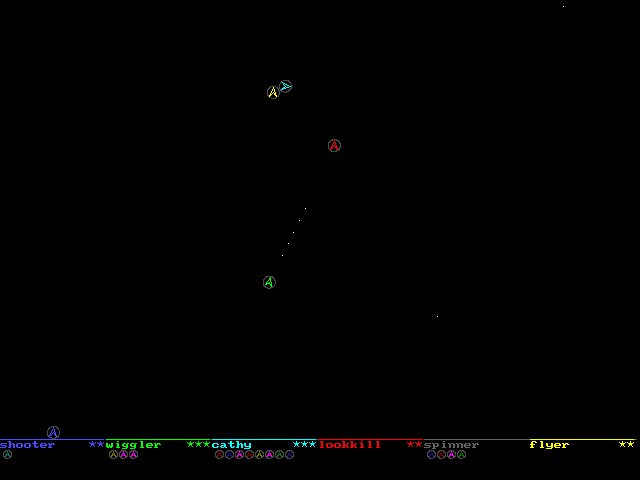
As in Robots, in SRobots you do not directly control the actions of your ship. Instead you write a program that controls the robot controling the ship. This game is a lot more complex than Robots, instead of the simple physics of Robots, SRobots is basically the old game of Thrust, with 'real world' physics. Instead of a top-down view, it is now side on. Six robots can fight, thrusting, expending fuel, shooting. unlike in Robots, the ships do not have any shields, and one hit will kill them. They do have 5 lives now though, and thankfully the Assembly for SRobots is much nicer than Robots'.
This is what it looks like. The bottom of the screen holds the status of the ships - name, the stars are lives, the little ships drawn below are kills. The amount of light colouring on each of the landing pads indicates the amount of fuel the ship has left. Above the ground you can see the ships flying around, trying to shoot each other. Cathy has killed loads of people, but is about to crash into another ship. Wiggler just fired a burst at LookKill, so it will get another kill to it's tally.
The game itself is pretty much complete. There is a bug in the scanner somewhere (I know cause I set up a Wiggler against a Shooter, and occasionaly the Wiggler fired, even though it only fires when it detects something and it couldn't possibly have detected anything). Had a brief look for it, but couldn't find it anywhere (didn't look for long).
My main goal (The Big Idea) is to convert SRobots to a Java applet, then put it on the web. Robots may then be placed on your web sites, and since a Java applet can access any URL in the world, everyone will be able to visit this web page, and fight their robots off against anyone else. If I get round to doing this, then there will be a list put up here of URL's for people's robots, and possibly a scoreboard of the robots to beat. Right now there are not many people writing robots (I'm not), in fact, I know of one (and a couple of 'soon, I promise').
For more information, here are the docs for SRobots:
SRobots - the sequel!
Version 1.03
By Iain King
40,000 AD - The future of warfare.
War is silly - people die and nobody want's too. To remedy this, the
nations of the different worlds decide that they'll settle their differences
in a way other than sending out half there population to get slaughtered.
To this end, they build small robots. They give them a sense of self
just so they don't want to die (hey - war is no good if *nobody* suffers), get
their top programmers to write there OS, and put them in little ships to 'get
the bits blasted out of' them.
Guess who they hired to code them? :)
-------------------------------------------------------------
Space Robots Docs!
1) The universe
The universe as seen by the robot -
how does the game work?
2) Notes on how to write the programs.
The layout of your source, and what the source
looks like.
3) The commands
A list of the commands and their functions.
4) The programs with the game.
Appendix A - list of commands with their opcodes
Appendix B - version list
-------------------------------------------------------------
1) The Universe.
The SRobots universe is quite simple. Honest.
To get a quick look at the universe type at the DOS prompt :
srobots spinner flyer
This will run srobots with two robots - one spinner, and one
flyer. The screen will pop up, giving stats on the robots.
Lines is the number of lines of code the robot has, and registers is
the number of registers used. Played, Won and Kills are pretty obvious. A
robot Wins if it is the last robot left alive. Deadliest is the robot in a
game that scores the most kills. %Wins and %Deadliest is the percentage of
games Played that that robot has won/been deadliest. The (Kills) is the average
number of kills per game. Hit a key and the game will switch to the game screen.
Hit a key again and they will take of and start buzzing about. The
spinner start lobbing volley's of shots into the air. As time goes by, either
the spinner will kill the flyer, or it will kill itself.
And that's what the game looks like. The screen wraps to the left
and right, but has a 'ground' (which is composed of landing pads), and a
'ceiling' (in the sense of a jet fighter's ceiling).
There is a gravity, and the ships move by thrusting and spinning.
In fact, this game is really the old game of thrust, but you don't get to
take an active roll in the game. Instead, you program the robots, who in
turn fly the ships.
The ships have no armour, or what you might call energy. Any sort of
hit on the ship will kill it. Each robot starts with five ships, or lives.
The ship's also have a finite (though reasonably large) supply of fuel. This
goes down as you thrust, but the ships get refueled whenever they land. To
land, the ship must fall relatively gently to the ground and be facing
straight up. If they do not face straight up then they will crash and die.
If a ship dies it restarts at a random location on its pad. The robots
program is rerun from the begining. (Note that you can detect how many lives
you have left, and so write your robots to take a different strategy depending
on how stocked up they are).
All but the last ship have emergency evac teleporters. Your robot
will teleport to safety when the ship blows up. If the last ship blow's up
though...
The pad's themselves show you your robots information. The coloured
line that makes up the pad is divided into two part, light and dark. This
is a fuel guage - the more light, the more fuel. The ships name is below
this, and to the right of the name is the ships current number of lives.
Below this a string of small ships will appear (hopefully),
indicating your robot's kills. (NB suicides do NOT count toward kill total)
As indicated, if a ship hits the ground too hard, or at the wrong
angle then it will explode.
If a ship hits the 'ceiling' then the lack of air at that altitude
will cause the ships turbines to stall. This basically means that your
engines are switched off and your y coordinate does not travel outside the screen.
Your ships can, of course, shoot. They can fire up to five shots on
screen at once, with no reload time. Shot travel until they hit the ground.
(NOTE - although your ships stall at their ceiling, the shots are not
propelled, and can travel above the limit)
Your robots have several means of gaining information about the
surrounding area. The first is that the robot can see out the front of his
ship in an arc up to 60 degrees straight ahead, to a limited range.
This yields the most info, as the robots can assimilate a lot of data quickly.
Next is the ships targeting scanner, which can scan any direction to a
limited range, and provides good info, but not quite as good as looking.
Finally, the radar can be used, which has an unlimited range, but can only
find the range of the objects found.
The robots may also talk to each other. This is done by using
the ship's radios. Team games can therefor be played, but the robots will
have to be programmed to know this! And remember - there can be only one!
If your team wins, then all but one will have to kill themselves so that
someone wins.
Coordinates:
The altitude is given in pixels and is in the range 0-379 (I think)
Angles are given in degrees, and 0 degrees is straight up. The angle
moves anti-clockwise, so 45 degrees points to the top-left.
User control:
It is possible to use the mouse to fly a ship in-game. This is
mainly for testing out your robots (as it should be quite simple to
beat them). Moving the mouse left and right spins your ship, left
button shoots, right button thrusts.
-------------------------------------------------------------
2) Writing your robot's programs
The assembler for Robots was incredibly bad. Srobot's assembler is
much nicer. Here are the basic rules:
a) No line can be blank - every line must contain an
instruction. (This is so the PC given in the game's
debug mode matches your source)
b) The commands are all three letters long. Sorry.
c) Commands can (and most do) have arguments.
d) A space or a comma can be used as a seperator.
All these are legal:
jeq start 0 0
jeq start 0,0
jeq start,0,0
jeq start, 0, 0
jeq,start,0,,,,,,,,,0
Obviously some are better than others.
e) Comments are denoted by a '//' (ignoring the quotes)
example:
jeq start 0,0 // Go back to start.
f) From (a) above : No line can be solely a comment.
g) Arguments can be one of four things:
A constant i.e. 1 5 1203 etc..
A label i.e. start main here there etc..
A register i.e. $1 $5 $128
A named register i.e. $shots $mode $freq etc..
A constant is any number (within a set range
obviously, but its big). They are all 'real' - in
srobots there is no 'typing' involved.
A register is refered to by placing a $ (dollar)
before a number. There are in all 128 registers,
ranging $1-$128. You may also refer to a register
$0. Register 0 refers to the top of the stack, and
lets you peek at the value held there. Refering to
a register out of this set will result in an error.
A named register enhances code readability. To
create one simply type a dollar '$' followed by the
name you wish to use. The name can be the same as a
label, but this would be a bad idea. When the
assembler assembles your code, it works out which
registers you have not called specifically (i.e. by
there index 1-128), and assigns the named registers
the free indexes. When you assemble your robot, Skatr
will tell you what index it has assigned to each named
register - it is a good idea to write these down during
debugging (in-game listings will refer only to register
indexes).
If operand is a 'destination' register, then the
dollar sign is optional, but strongly recommended.
i.e.
alt 1
is perfectly legal, but will be confusing when
editting. Also, you can't assign values to the
stack by using $0 as the destination of an operation.
The command will go ahead, but the value will be lost.
The dollar sign on a named variable is always compulsory.
If you omit it, then the assembler will take the name
as a label name.
A label is any string THAT MUST start with a letter.
Labels are used with jumps, and are defined in a
program like this:
thr 1 1 <-start // this is the label
jeq start 1,1 // this jumps to label
The label points to the line it is on (the line it is
on is the one that is jumped too).
Here is an example program to show (allegedly) good formating, in two
different styles. Note how we create a comment block at the top of the
program. The waste of the very first tick of the game (by the jump) is
practically as efficient as a commentless program - the game is geared to
allow a lot of ticks between movement - thrust and gravity are set at 0.00025
and 0.00002 of a pixel/tick/tick respectively.
----------------------------------------------------------------------------
jmp start // Hover by Iain King
sht
sht // Tries to hover in mid air
sht // Thrusts up, then waits until it
sht // starts falling.
sht // Once it starts falling, it thrusts up slightly
sht //
sht // Version 1.0
sht
thr 1000 1 <-start
thg $1
beq 1 $1 1 // Wait till we've stopped thrusting
dvy $vy <-main
ble 1 0 $vy // Wait till were falling
thr 1 .6
dvy $vy
ble 2 $vy 0 // Thrust till were not falling
jmp main // Back to top of main loop
----------------------------------------------------------------------------
jmp start // Hover by Iain King
sht
sht // Tries to hover in mid air
sht // Thrusts up, then waits until it
sht // starts falling.
sht // Once it starts falling, it thrusts up slightly
sht //
sht // Version 1.0
sht
thr 1000, 1 <-start
thg $1
beq 1 $1, 1 // Wait till we've stopped thrusting
dvy $vy <-main
ble 1 0, $vy // Wait till were falling
thr 1, .6
dvy $vy
ble 2 $vy, 0 // Thrust till were not falling
jmp main // Back to top of main loop
-----------------------------------------------------------
3) The commands
Here are all the commands available in srobots.
In all cases, A = operand 1, B = operand 2, etc..
Jumps and branches:
(A brief word - having just taken a class in RISC architecture's,
this is what I have modeled this version of SKA (this assembly)
on. Because of this, there is no JMP, or direct jump.
To perform a JMP, simply use a JEQ with the last 2 operands set at
0. Simple. Also note that greater than is the same as less than
or equal too with the arguments the other way around. Similarly,
>= is the same as less than with the args back to front.* However, the
effects of the class are wearing off now, so the assembler will convert
the commands : set, jmp, jgt, jge, sbr, sge, sgt, fwd, fge, fgt, bwd, bge,
bgt (like a macro) into the relevant add/equal/less than/less than or equal)
There are two types of jumps. Immediate jumps and relative
jumps. The two forms of immediate jumps are the 'jump'
set and the 'subroutine' set. The two forms of relative
commands are the 'forward' set and the 'back' set.
The immediate jumps can take a constant, a register or
a label for the destination. The relative jumps can only
take a constant or a register for their destinations.
In all jumps, the operands are divided as follows:
A, the first operand, is the destination.
Immediate:
If it is a constant, then that line number is
jumped to.
If it is a register, then the
jump will take you to the line number held in
the register (N.B. if your program jumps to
hyperspace then your ship will self destruct)
If it is a label, then the line number pointed
to by the label will be jumped to.
Relative:
If it is a constant, then the program counter
moves that many lines in the given direction.
If it is a register then the program counter
moves the register's value worth of lines in
the given direction.
B and C, the second and third operands are always compared
with each other. Depending on their values, and the jump
used, the program counter will or will not be changed to the
destination line number.
(For lines marked * see notes above)
The 'jump' set :
jmp A // will jump to A *
jeq A B C // will jump to A if B equals C (B==C)
jne A B C // will jump to A if B does *not* equal C (B!=C)
jle A B C // will jump to A if B is less than or equal to C (B<=C)
jlt A B C // will jump to A if B is less than C (B<C)
jge A B C // will jump to A if B is greater than or equals C (B>=C) *
jgt A B C // will jump to A if B is greater than C (B>C) *
The 'subroutine' set :
sbr A // subroutine jump to A *
seq A B C // subroutine jump to A if (B==C)
sne A B C // subroutine jump to A if (B!=C)
sle A B C // subroutine jump to A if (B<=C)
slt A B C // subroutine jump to A if (B<C)
sge A B C // subroutine jump to A if (B>=C) *
sgt A B C // subroutine jump to A if (B>C) *
rtn // return from subroutine
When a subroutine jump occurs, the current position of the program is
pushed onto a stack (Which can hold 128 subroutine jumps). When an
'rtn' is hit, the program flow jumps back to the point when the
subroutine jump was hit. (Basically gives you a GOSUB, or
an argumentless PROC)
The 'forward' and 'back' sets :
fwd A // jump forward A lines *
feq A B C // jump forward A lines if (B==C)
fne A B C // jump forward A lines if (B!=C)
fle A B C // jump forward A lines if (B<=C)
flt A B C // jump forward A lines if (B<C)
fge A B C // jump forward A lines if (B>=C)
fgt A B C // jump forward A lines if (B>C)
bwd A // jump backward A lines
beq A B C // jump backward A lines if (B==C)
bne A B C // jump backward A lines if (B!=C)
ble A B C // jump backward A lines if (B<=C)
blt A B C // jump backward A lines if (B<C)
ble A B C // jump backward A lines if (B>=C)
blt A B C // jump backward A lines if (B>C)
Notes :
Jumping forward or back zero lines will hang the program -
the jump jumps to itself.
Jump forward one line is what would happen if the jump never
occured.
Reseting:
Your robot can be told to reset his memory, which will cause
the program to clear all values and rerun from the start.
rst // reset and rerun from start
The Stack:
Two commands are available for manipulating the stack. The stack can
hold 128 entries, and if you overflow it, then the newest data will
simply not be stored. The value held in register 0 is the value at the
top of the stack. For example, to thrust for a number of ticks stored
on the stack at 100% power, use this:
thr $0 1
If the stack is empty then 0 will be returned on reference to $0.
psh A // Pushes A onto the top of the stack. Any reference to
// $0 will now refer to A
pop // Pops the stack - i.e. removes the top element.
i.e. psh 1
psh 2
psh 3
psh 4
psh 5
pop
pop
set $1 $0
would set register 1 to the value 3.
Basic arithmetic:
n.b. You may have noticed that you cannot assign a register a value.
To do this, you add the value to zero and store the result in the
register (as I said above, just did a class on risc programming * also
see notes above on why the assembler converts:
set A B
into
add A B 0
)
set A B // A=B * see above
add A B C // A=B+C
sub A B C // A=B-C
mlt A B C // A=B*C
div A B C // A=B/C
sin A B // A=sin(B)
asn A B // A=arc sin(B)
cos A B // A=sin(B)
acs A B // A=arc cos(B)
tan A B // A=tan(B)
atn A B // A=arc tan(B)
int A B // A=int(B) (truncates)
mod A B C // A=B mod C (modulus)
pwr A B C // A=B^C
sqr A B // A=sqr(B) (square root)
rni A B C // A=random integer between B and C (inclusive)
rnd A // A=random real (0-1)
The radio:
Inter-ship communications. Use 'frq' to set the frequency to listen
to. Use 'msg' to have a look at next message (0 if no message). This
also erases that message, and a subsequent use of 'msg' will see the
next message.
Use 'snd' to send messages. A message is simply a number. You can
hold twenty messages in your message queue.
frq A // set radio to recieve on frequency A (range 0-99)
msg A // store next message in A (0 if no message)
snd A B // send message A on frequency B
Ship controls:
The ship is controled with these commands. Any 'time' operand (i.e. in
'thr') can be given -1, meaning forever
trl A // turn left (anti-clockwise) A degrees
trr A // turn right (clockwise) A degrees
fac A // store the angle you are currently facing in A
thr A B // thrust A ticks at B power (B in range 0-1 / none-full)
sth A // set thrust power to A
thg A // Am I thrusting? 0=No 1=Yes in A
trg A // Am I turning? 0=No 1=Yes in A
thp A // Store current thrust power in A
Ship info:
Information on the ship and the world.
fue A // Store current fuel (0-1 / empty-full) in A
alt A // Store current altitude in A
grv A // Store gravity force in A
mth A // Store maximum thrust power in A
sid A // Store ship ID in A
lan A // Am I landed 0=No 1=Yes in A
liv A // Store number of lives left in A
tim A // Store current game time in A (number of ticks)
dvx A // Store current x velocity in A
dvy A // Store current y velocity in A
dvr A // Store current speed in A
dva A // Store current direction of travel in A
Guns:
Shoot your pea shooters!
sht // Shoot
bul A // How many bullets left unshot? in A
Radar:
Finding out about the environment. Ships and bullets will be
picked up by radar.
All three radars work by first calling the appropriate one.
This adds all objects found to your robots internal list (max 35
objects). You can scan through them using 'nxt', and get indivual
data onthe current list element. A ship's ID ranges from 1-6, all
bullets have ID of 0, and a -1 for an ID means the list is empty.
lok A B // Look ahead. Ignore anything beyond range A (max 100)
// Ignore anything outside arc B (max 60)
// returns values usable by:
// tid, tgx, tgy, tga, tgr, tvx, tvy, tva, tvr
scn A B C // Scan. Same as 'lok', but scans in direction C.
// A has max 200, and B is unlimited.
// returns values usable by:
// tid, tga, tgr, tva, tvr
rad A // Radar. Include all objects within range A (unlimited)
// returns values usable by:
// tid, tgr
rel A // If A is 1 then any 'scn' will be performed relative to
// the direction in which the ship is facing. If 0 then
// the scans are at absolute directions.
fnd A // Store 1 in A if the last 'lok', 'scn' or 'rad' found
// something, else stores a 0
nxt // moves on to the next item in list of found objects.
fls // flushes (removes all objects from) the list of objects.
All the following return values from the current item in the list of
found objects.
tid A // Stores target ID in A (1-6 if ship, 0 if bullet,-1 if
// list empty)
tgx A // Stores target x distance away
tgy A // Stores target y distance away
tga A // Stores target angle (what direction he is in from you)
tgr A // Stores target distance from you
tvx A // Stores target x velocity
tvy A // Stores target y velocity
tva A // Stores target direction of travel
tvr A // Stores target speed
System :
The WRT write command allows you to write self-modifying code. This is
naturally an incredibly stupid thing to do, but I put it in for a laugh.
Can't see this leading to more optimal coding, but it will make your code
pretty much elligible.
wrt A B C D E // writes to the robots program
// Writes to line A, with opcode B
// C,D and E are operands for that opcode,
// but if you use registers, then it will be the
// actual register used rather than its contents
For example:
set $1 7
set $5 2
set $add 17
wrt 4 $add $5 $1 5
This will cause line 4 in the program to be changed to:
add $5 $1 5
NOT 'add 2 7 5' as you might expect.
Robot info :
You can find out the info on the robot - wins, played, kills,
times deadliest. (These are the total amounts over many games,
as reported on startup)
rbp A // Stores the robots # games played in A
rbw A // Stores the robots # games won in A
rbd A // Stores the robots # games been deadliest in A
rbk A // Stores the robots # kills in A
Pretty pointless stuff to know, but ould come in handy (in team
games, only one bot can win, so you could use these to find out
the bot that had the highest score and make it win (by making it's
team mates die))
Debugging :
The DBG command can be used for debugging your robots.
dbg A B // Displays info on your robot, and it's registers
// contents up to register A (starting at 1)
// If B is 0, then only activates if running in debug
// mode (press the 'D' key), else activates regardless
---------------------------------------------------------------
4) The programs with the game.
The game has five programs : srobots, skatr, view and makeska, as
well as a batch file fight.bat
srobots :
This is the game itself. The parameters you pass in are the
robots that are to fight, and the switched to be used.
i.e.
srobots [/PTIS] shooter hover lander
The files for these must be these names with a '.rbt'
extension. srobots looks for them in either the current
directory or a subdirectory off the current one named
'robots'.
The switches do the following
S No spinner - the spinner shown in text mode will
not be displayed - you may want to redirect output
to a log file, which is what this is for.
P No Pause - SRobots will never wait for a keypress.
I No Info - The stats of the robots is not displayed
at the start.
T Text only - No graphical output produced
If you enter a robot name as 'user' on the command line, then
you will be given control over a ship in-game. Moving the mouse
left and right will spin your ship, left button will fire, right
button will thrust.
In the game, certain keys have functions.
The keys 1,2,3,4,5,6,7,8,9,0,-,=
Control the frame update. 5 or 6 is good for me. If you want
to fight quicker games run it at 9 or 0.
'Space' toggles single frame stepping. In this mode hitting a key
will advance the game one tick
'd' puts the game into debug mode, which will display some
extra info for each robot below it's pad (its current line
number, the current op code, and the truncated contents of
register 1). Also displays current time (in ticks) and frame
rate in top left corner. Also, see the DBG command.
'x' puts the game in extra debug - this practically stops the game,
but you get to examine practically every part of the programs running.
In this mode, any key advances you, 'x' stops the extra debug, and the
keys 1-6 allow you to examine the relevant robot.
'r' refreshes the screen
'Esc' quits, and asks if you want to treat as a draw and save.
If you say yes, then the stats for the game are saved to the
robots as if the game were a draw (i.e. - it saves the kills)f
N.B. The game always displays a winner/deadliest message to the standard
output, which you can redirect to create a logfile
(I.E> fight /P cathy shooter >>logfile.txt)
skatr :
This is the assembler. If you have a source file robot.ska,
then to assemble it you would type:
skatr robot
or skatr robot.ska
Skatr has a few options, and it's command template looks like
this:
skatr [/dylprc=######] filename
The switches MUST go before the filename, and if a 'c' is present
, it must go AFTER any other switches.
The switches do the following:
'D' Does not display any information.
'P' Does not display the Program code.
'L' Does not display the Label information
'R' Does not display the named Register information.
'Y' Does not prompt for file overwrite - yes assumed
'C' Allows you to specify a view code. The 'c' must be
followed by an '=' then six digits.
Specifying a view code will enable you to view the code generated by
your ska. It's pretty pointless for anyone but me (I need it for
debugging), but you can do it anyway. If no view code is specified,
then your code is secure and may not be viewed. (except by anyone with
a modicum of knowledge on viewing files).
(N.B. skatr is called skatr for hysterical raisins)
view :
VIEW <CODE> <ROBOT>
This allows you to view the .rbt files (dissassemble them).
You must specify a code, which if it doesnt match will stop
you viewing the source.
makeska :
This allows you to assemble multiple robots at once. It takes
one argument which is the filename of a list of ska files, for
example:
shooter.ska
wiggler.ska
spinner.ska
an easy way to make a makefile would be :
dir /b *.ska >makefile.txt
clear :
clears the stats in one rbt file - takes filename as
parameter. Useful if you want to collect stats on a match:
Clear all robots involved before the match, and the stats
will give you an accurate view on what robot is the best.
fight :
This is an NDOS batch file for running multiple games. It takes
arguments the same as SROBOTS (i.e. [/PTI] robot1 robot2 robot3...)
and then fights runs srobots until you exit it with 'Esc'.
---------------------------------------------------------------
Appendix A : The commands and their opcodes
Command Opcode
jeq 1
jne 2
jlt 3
jle 4
seq 5
sne 6
slt 7
sle 8
feq 9
fne 10
flt 11
fle 12
beq 13
bne 14
blt 15
ble 16
add 17
sub 18
mlt 19
div 20
sin 21
asn 22
cos 23
acs 24
tan 25
atn 26
int 27
mod 28
pwr 29
sqr 30
frq 31
msg 32
snd 33
trl 34
trr 35
fac 36
thr 37
fue 38
trg 39
thg 40
sht 41
bul 42
rtn 43
alt 44
thp 45
grv 46
dvx 47
dvy 48
dvr 49
dva 50
lok 51
scn 52
rad 53
nxt 54
fls 55
tgx 56
tgy 57
tga 58
tgr 59
tvx 60
tvy 61
tva 62
tvr 63
tid 64
sid 65
liv 66
tim 67
rni 68
rnd 69
sth 70
lan 71
fnd 72
rel 73
dbg 74
rbk 75
rbw 76
rbp 77
rbd 78
psh 79
pop 80
rst 81
mth 82
wrt 83
---------------------------------------------------------------
Appendix B - version list
Version 1.00
First release.
Version 1.01
New stuff added - Startup info, wins/kills/etc saved to
robots files. Speeded it up (about twice as fast -
some severe bumming, honest! It's not like I just told
the compiler to *use* the Math's Co-processor instead of
emulating it.) (Also added the commands that make use of
robot info - rbk, rbp, rbw, rbd)
When fighting with multiple instances of the same robot, that
robots stats are saved in this order:
If one of that robot type WON, then it will be saved.
Else, the instance of the robot with the most kills
will be saved.
Draw text bug fixed, along with draw bug (a ship winning with
one life left was classed as a draw before)
Added command line switches to srobots
(text only mode, no pause, no info).
Added command line switches to skatr (no prompt, no display,
enter view code)
Bug fix on landing - if you turned more than 360 degrees in one
direction, then you could not land (I forgot to MOD the ships
facing to 2*PI)
Shots now affected by gravity and no longer get destroyed if they
fly above the ceiling. Also changed fixed distance of travel
to travel time, then removed that - shots now stay alive until
they hit something (the ground, an enemy, you)
Fixed graphics glitch (ship never cleared properly if it died on
edge of screen)
Added DBG command.
Added ESC to quit (and possibly save results)
added extra debug mode
added refresh screen
added fight.bat
added the in built macros to assembler for jmp, jge, jgt, sbr, sge, sgt
, fwd, fge, fgt, bwd, bge, bgt, set. Looking back now, the whole
assembler could have been done a lot better : for example, the whole
command sets of the forward and backward jumps could have (and should have)
been done as macro's of the jump set. Instead they are coded as instructions
in the game.
new executables view and makeska. View is pretty pointless for anyone but
me, but if you REALLY can't work out what is wrong with your bot, check out
your .rbt file with it. If there is a bug in the assembler please report it
to me - address at top of page.
fuel now necessary for turning as well as thrusting.
fixed bug with messaging - all messages now synced to clock tick after send.
Before, depending on your robots position, it could recieve a message sent in
the tick it was sent OR the tick after.
added stack. Actually the code for the stack has been in there since the start.
I just forgot to implement the commands to make use of it. Oops.
Version 1.02
Added RST command.
Version 1.03
Added user control
Fixed docs
Rewrote View (now it works)
Added /plr options to Skatr
Added named registers
Skatr and Srobots now recognise standard parameter entry
(paramters now no longer need to be grouped under the one '/')
This involved all the effort of changing an IF statement into
a WHILE, one in each program.
Added MTH command.
Added WRT command.